Chats and citations
Citations
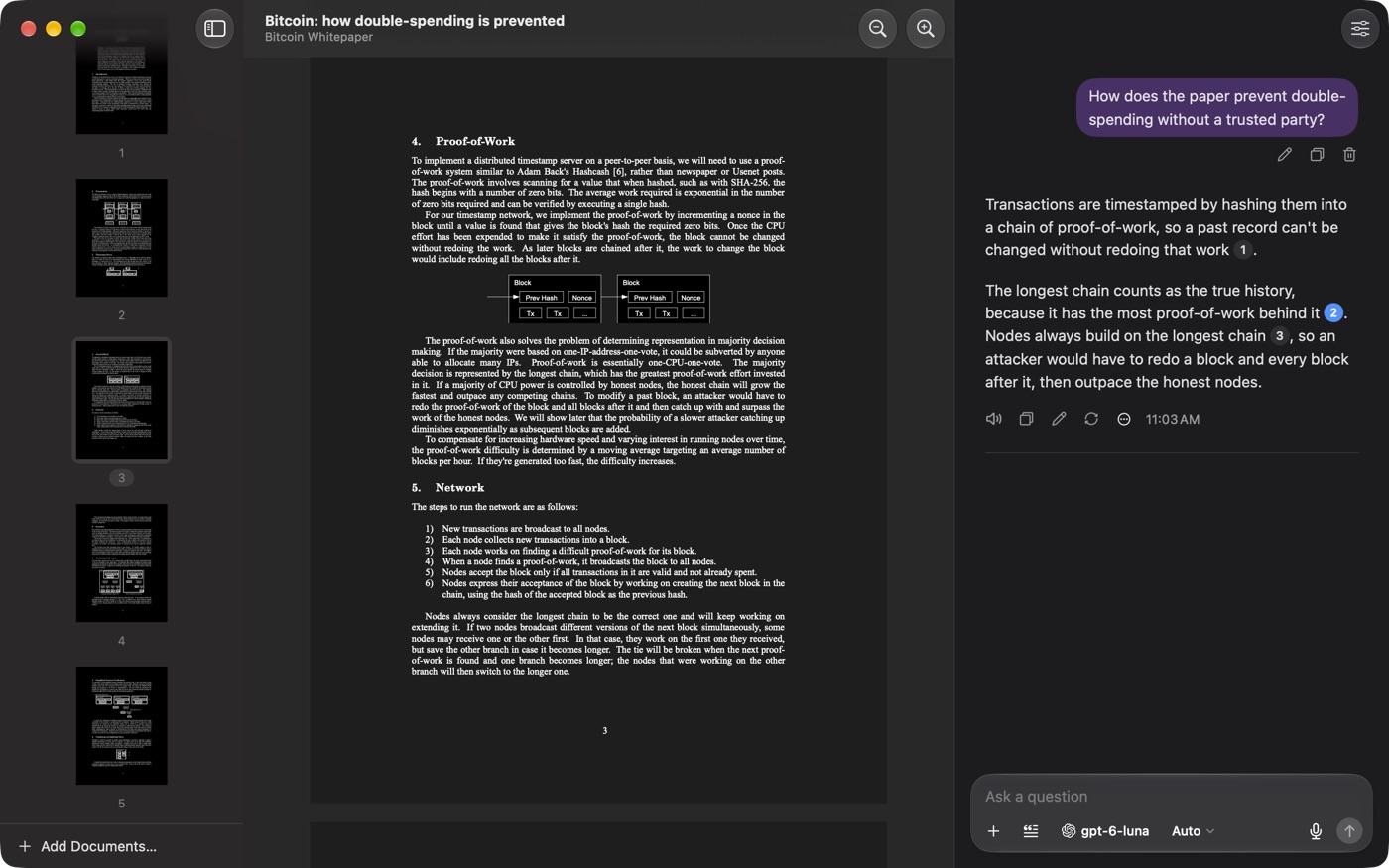
- Click a citation to open the cited page with the passage highlighted.
- Step through citations with Chat ▸ Next Citation (⌥⌘↓) and Previous Citation (⌥⌘↑).
- Copy the sources with the answer's More menu ▸ Copy Citations.
If the file changed since indexing, re-index it so highlights line up.
Work with an answer
Below each answer: Copy (or More ▸ Copy as Markdown), Read Aloud, Edit and Regenerate (⌘R). Continue Generating appears when an answer hit the model's output limit, and Retry when it failed: see troubleshooting.
Press ⌘. to stop an answer.
Ask about part of a document
Select text in the reader, right-click and choose Ask About Selection, or right-click a page and choose Ask About This Page. Naming a document by its file name in your question searches only that document.
Add documents, images and files
- Chat ▸ Add Documents… adds documents from your library, or new files with Choose Files….
- The + button next to the question field has Attach File…, Attach Image…, Take Screenshot… and Add Documents…. Images need an answer model that reads images.
Choose the model for a chat
Click the model button next to the question field. Right-click a model to add it to Favorites or Set as Default Model.
Reasoning models show a Reasoning Effort button next to the model (⌥⌘R). While they think, Thinking… appears; click Thoughts to read their reasoning.
Chat settings
Chat ▸ Chat Settings… (⌘;) applies to this chat only.
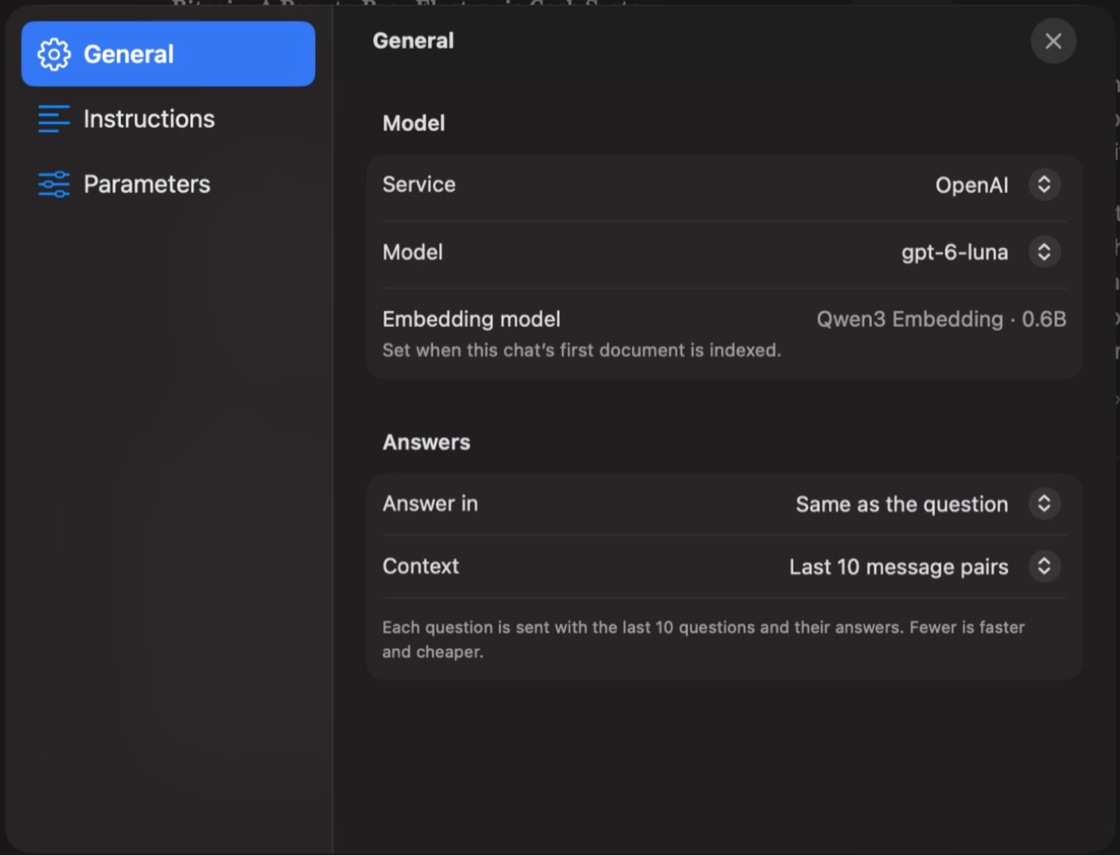
- General: the model, Answer in (same language as the question, or a fixed one such as English, Spanish or Japanese) and Context (see chat context limit).
- Instructions: custom instructions for every answer in this chat.
- Parameters: Temperature, Frequency Penalty, Presence Penalty and Reasoning Effort. Auto uses the model's default.
Edit and delete messages
Below each question are Edit, Copy and Delete; for an answer, Delete is in the More menu. Edit opens a window with Save Changes (⌘S) and, for a question, Save and Regenerate (⌘Return). Chat ▸ Delete All Messages… clears the chat and keeps its documents.
Rename, pin, tag and delete
Right-click a chat for Rename…, Pin, Tags, New Chat with Same Documents and Move to Trash. In the Trash, use Put Back or Delete Immediately….
Export a chat
Choose File ▸ Export Chat… (⇧⌘E) and pick Markdown, PDF or JSON.
