Library, tags and search
Open the library with File ▸ Library (⇧⌘L). The sidebar has Chats, Documents, Trash and your Tags.
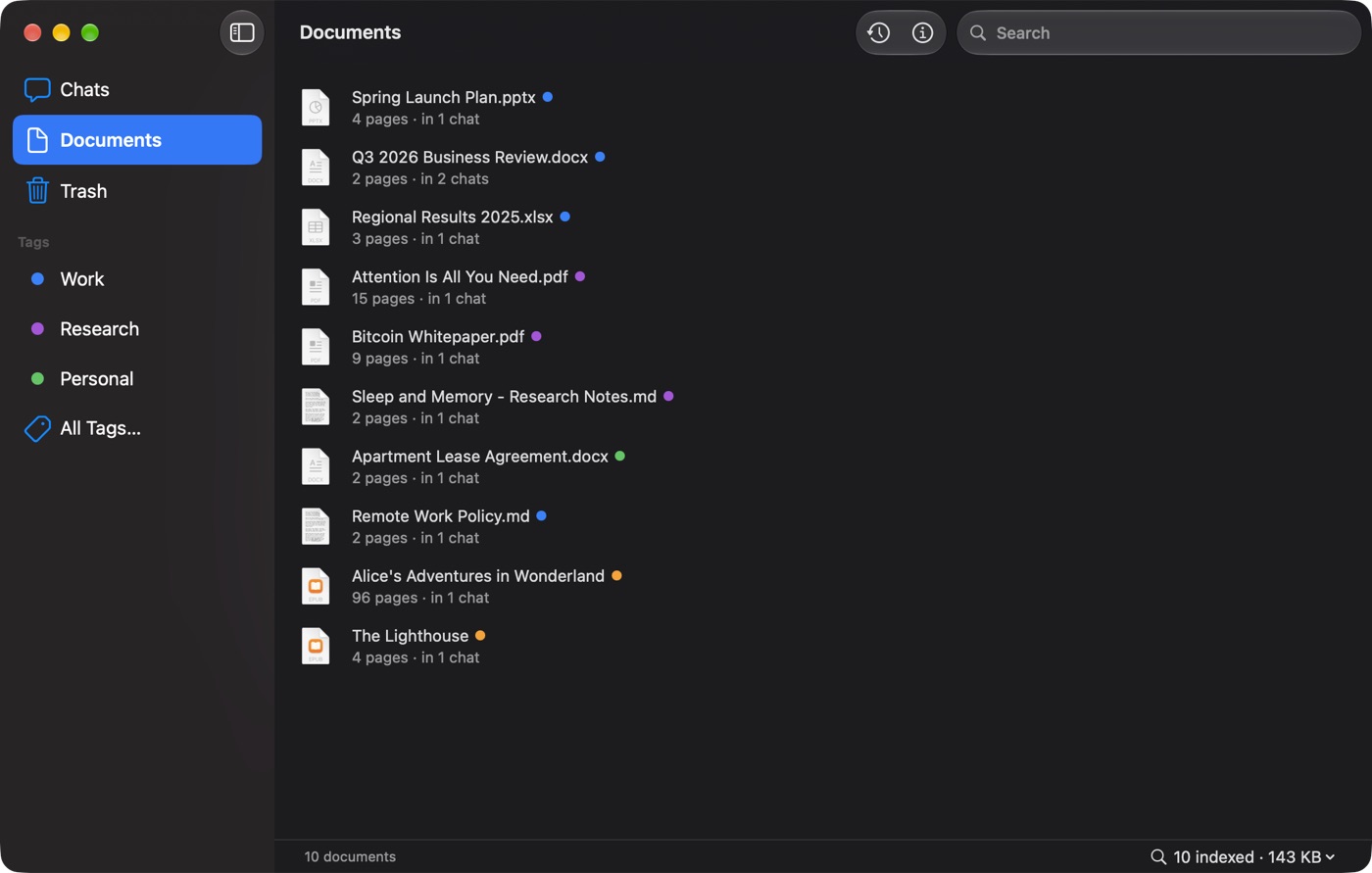
Documents
PDF Pals never moves, changes or deletes your files. Right-click a document for:
- Start New Chat
- Open in Preview (or Open in Default App) and Show in Finder
- Get Info
- Index, Re-index and, for PDFs, Re-index with OCR…
- Locate File… if the file was moved
- Remove from Library…
To remove a document from one chat, right-click it in the chat's sidebar and choose Remove from Chat….
Tags
Create a tag with New Tag…, then right-click a chat or document and check it under Tags.
Right-click a tag for Color or Delete Tag. All Tags… shows the rest.
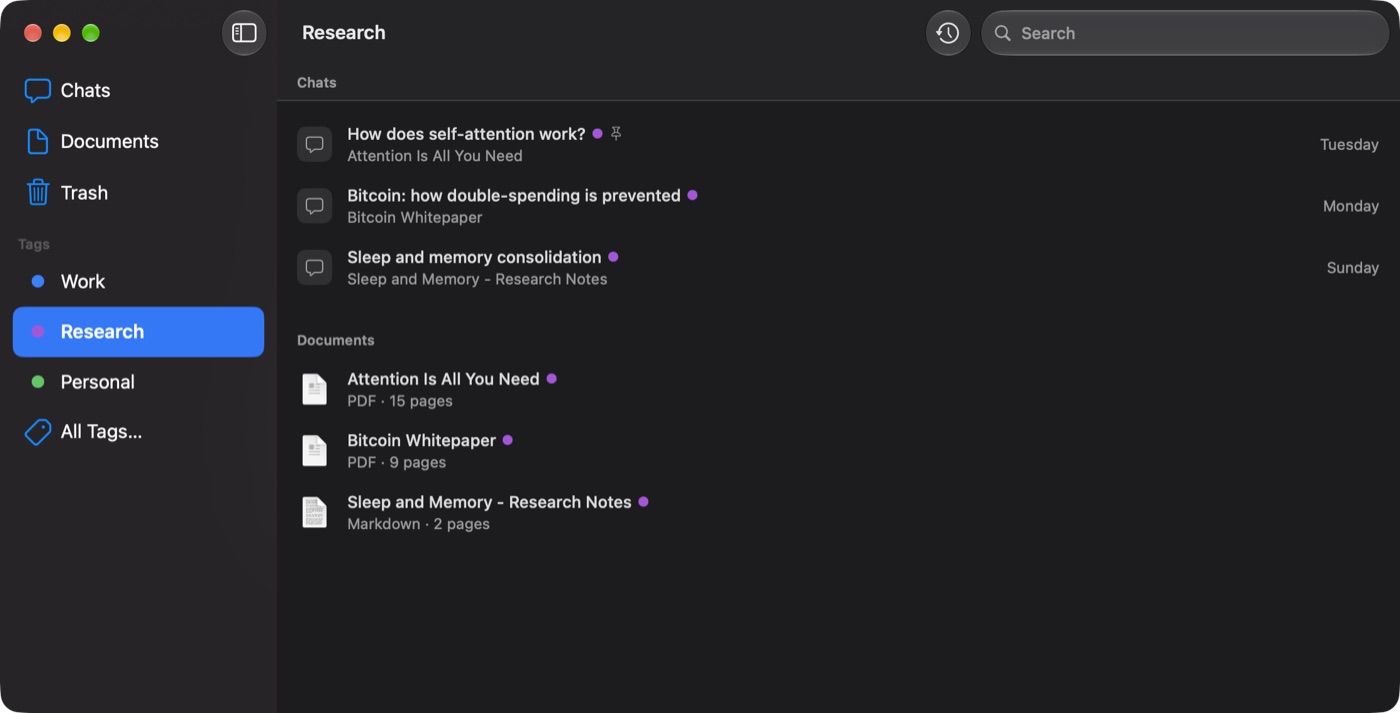
To tag files in Finder, turn on Tag documents in Finder when they're indexed in Settings ▸ Documents.
Search
- The Search field in the library toolbar finds chats and documents by name.
- In a chat, Find in PDF (or Find in Document) searches the open document, and Find in Conversation searches the chat.
Indexing
The Activity button in the toolbar shows what is indexing and what Needs attention. The menu at the bottom of Documents indexes what isn't indexed yet, re-indexes what needs it, or Re-index Everything….
If a document shows Couldn't index, see troubleshooting.
Where the library is stored
On your Mac. Settings ▸ Storage shows the space it uses, and Library folder ▸ Show in Finder opens it.
