Reading documents
Each chat window shows its documents next to the conversation.
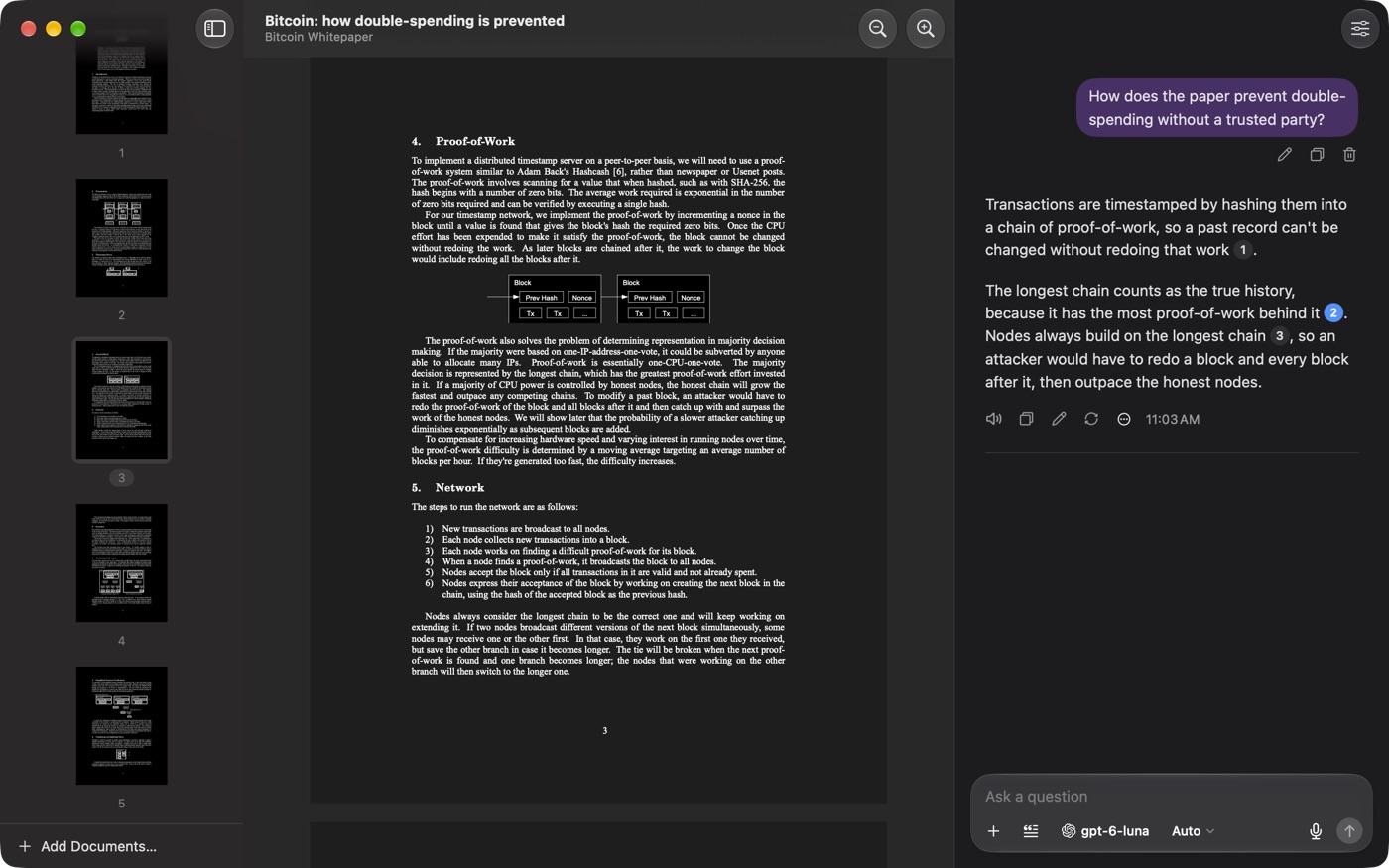
Move around
- Thumbnails: the sidebar lists the pages of each document in the chat. Click one to go there.
- Next or previous page: ⌃⌘↓ and ⌃⌘↑.
- Go to a page: Go ▸ Go to Page… (⌥⌘G).
- Back after a citation: Go ▸ Back (⌘[) returns to where you were, Forward (⌘]) goes again.
Zoom and find
- Zoom: ⌘+ and ⌘−, or ⌘0 for actual size. With the conversation focused, the same keys change its text size.
- Find: click in the document and press ⌘F. ⌘G and ⇧⌘G go to the next and previous match.
- Ask about part of a page: select text, right-click and choose Ask About Selection.
Display
- Hide the document to give the conversation the whole window: View ▸ Hide Document Viewer (⌥⌘P).
- Dark pages: View ▸ Dark Pages in Dark Mode.
- PDF Pals remembers where you were and the zoom for each document. Turn that off in Settings ▸ General.
To open the file in another app, right-click it in the sidebar and choose Show in Finder, or use Open in Preview in the library.
